
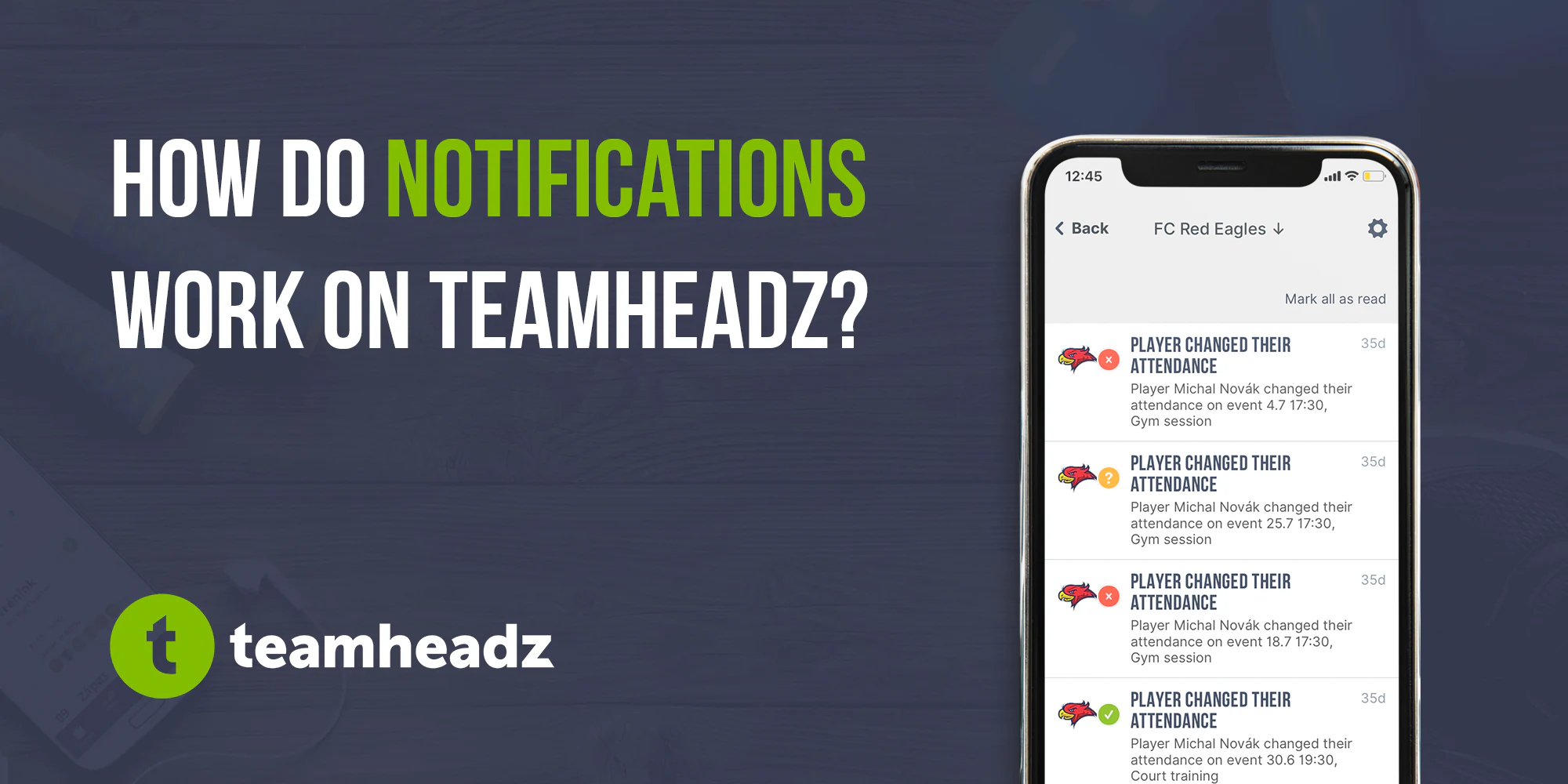
One of the key components of Teamheadz is notifications. Teamheadz sends 2 basic types: email and mobile (so-called "push") notifications. Let's see how exactly notifications work and how you can customize and set them yourself.
What notifications does Teamheadz send
Teamheadz sends notifications for the following team events:
- Creating a new event or multiple (repeated) events
- Event change
- Canceling an event (marking the event as canceled, not deleting it)
- Event attendance completion (admins and team owners only)
- Move from queue to participants
- New message on the message board
- New message in chat (team or event)
- Attendance reminder (only if activated when creating an event)
- Accepting a team invitation (admins and team owners only)
All notifications go to the primary and secondary e-mails that you have filled in on your profile. The exception is the following 3 notifications, which are initially set as mobile notifications only: New message in the chat, Filling out attendance at the event (only applies to administrators and owners) and Accepting an invitation to the team (only applies to administrators and owners).
The notification never goes to the user who is the author of the given activity - for example, the notification about a new event does not go to the person who started the event. Notification of a new message will not come to the person who wrote the message, etc.
How can I set notifications?
Each user can set himself which types of notifications he wants or does not want to receive and through which channels. This setting applies to a specific user account and, within that account, to all teams the user is a member of.
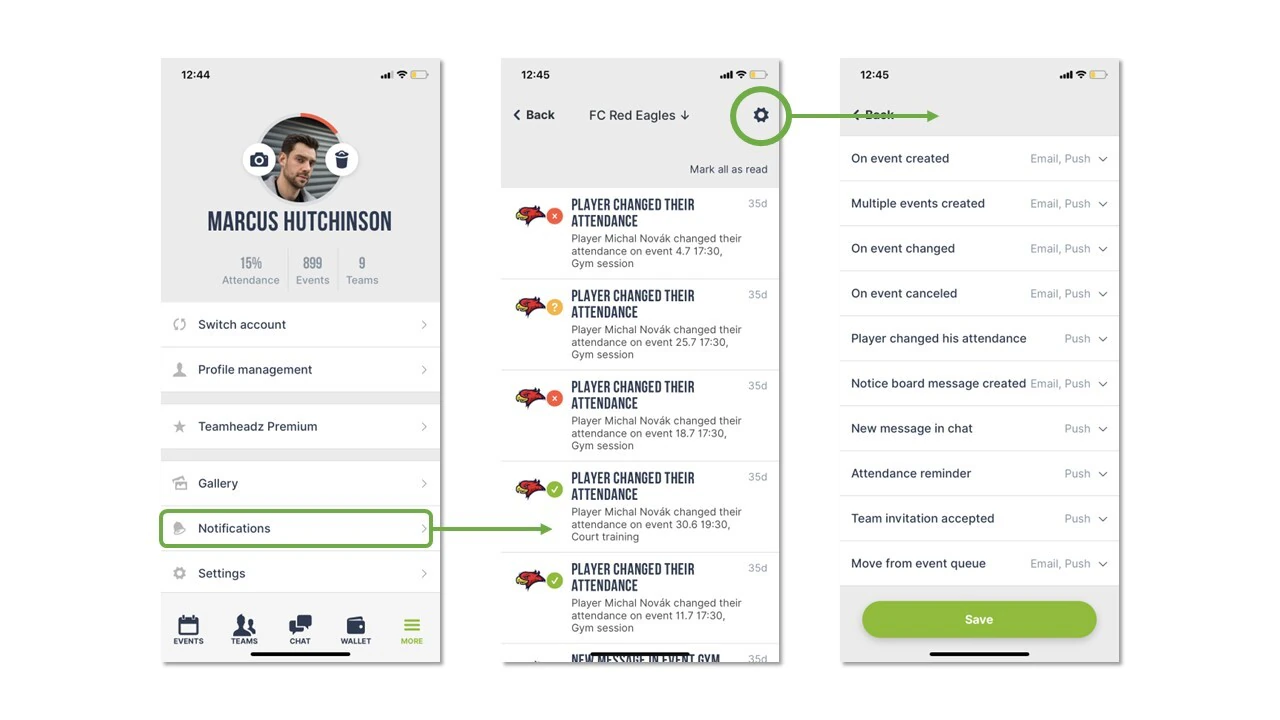
Settings are made in the notification detail, here you just need to click on the cogwheel and you will get to the "Notification settings" screen. Attention, changes need to be saved by clicking the green "Save" button below.
Frequently asked questions or problems
I don't get notifications :-)
Our monitoring currently proves that the notification system works reliably. However, there are reasons why you may not actually receive a notification, including:
- You have an incorrect e-mail address, a full inbox, or another problem of this type
- You have not verified your email address
- As mentioned above, the notification does not go to the author of the given activity ("I wrote a message on the message board, but I did not receive a notification")
If you did not receive the notification and despite the points mentioned above you are convinced that it should have come, please contact us at info@tymuj.cz and we will check the problem.
The notification goes to my e-mail twice
You have filled in the same email address in both the primary and secondary email fields.
I have a dot/red circle with a number on the app
This is an indication of new notifications. To delete them, click "Mark all as read" in the Notifications window (middle image above)
I get too many notifications
Notifications are sent as many times as there are activities in the team that cause the notification.
In the notification settings, you can turn off the given type completely (e-mail and push) and thus the given notification will not go at all. This way you can turn off all types of notifications. The notification will still be saved in your overview. So you won't lose information.
I have another question or problem
Write to us at info@teamheadz.com and we will be happy to advise and help you.